

crux on your phone
Pair your phone with your PC, then keep working your jobs from the phone: chats, citations, crux's questions, and how to disconnect.
Take crux with you. On a walk, in a meeting or on the jobsite, ask crux about the job, see where each chat stands, and check the cited page, right from your phone. Your PC does the work and keeps your bid documents; your phone shows your chats.
From your phone you can:
- Open any chat in any job, or start a new one.
- Ask crux a question and read its answer.
- Send a photo from the jobsite with your question.
- Tap a citation to see the page it came from, and page through the document.
- Answer when crux asks before it does something.
- Watch crux work, step by step, and stop a reply.
You need crux open on your PC, and a phone with a camera and a web browser. There is nothing to install on the phone.
Pair your phone
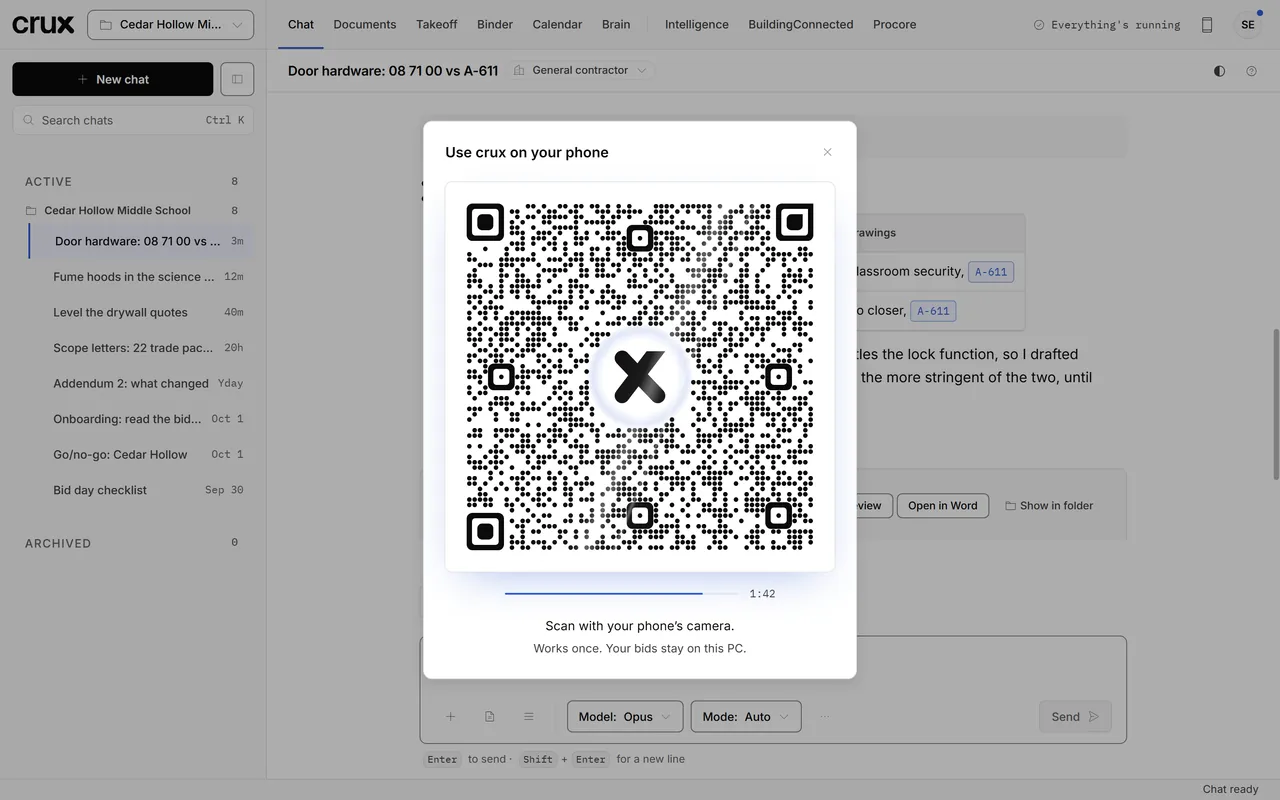
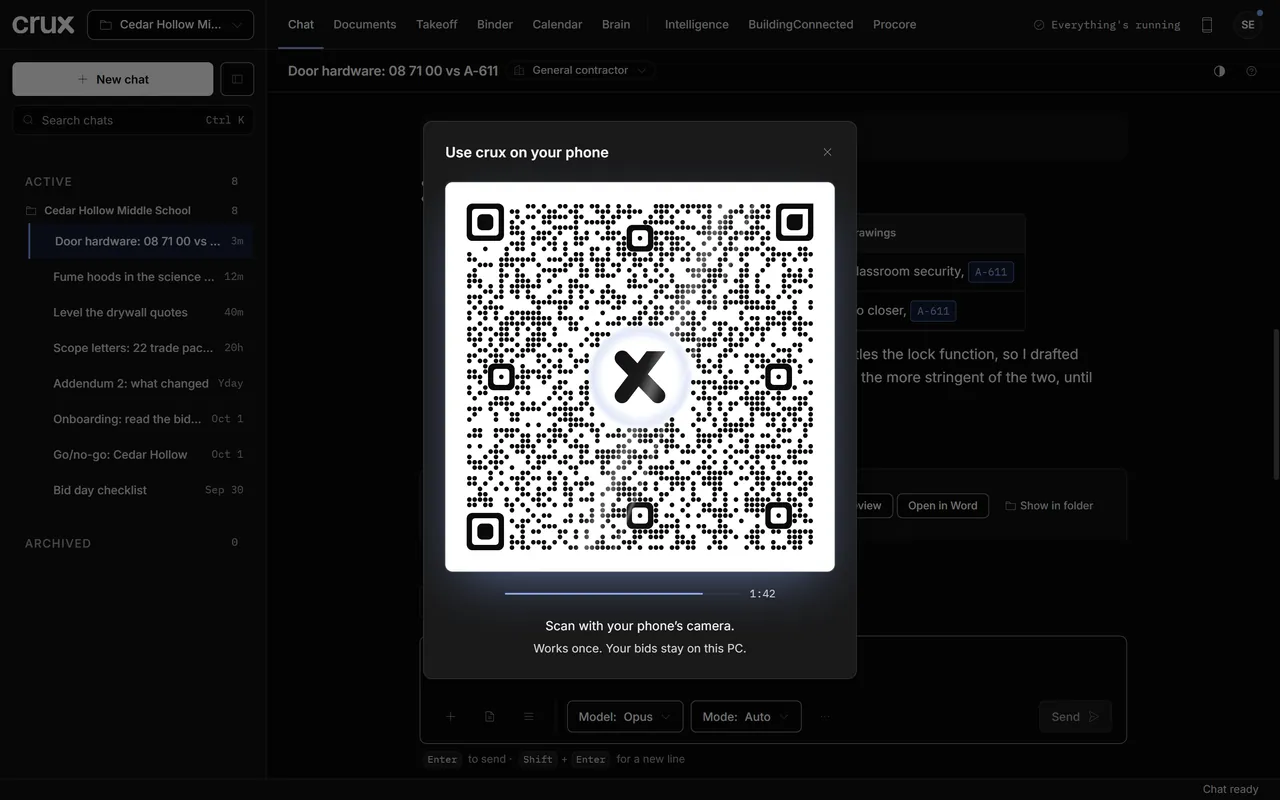
- On your PC, click the phone icon at the top right of crux. A pairing code appears, with a two-minute countdown.
- Scan the code with your phone's camera, and open the link it shows.
- Your phone says Confirm on your PC and shows one symbol.
- On your PC, crux says Phone found and shows four symbols. Click the one your phone shows.
- Your PC says Phone connected, and your phone opens your chats.
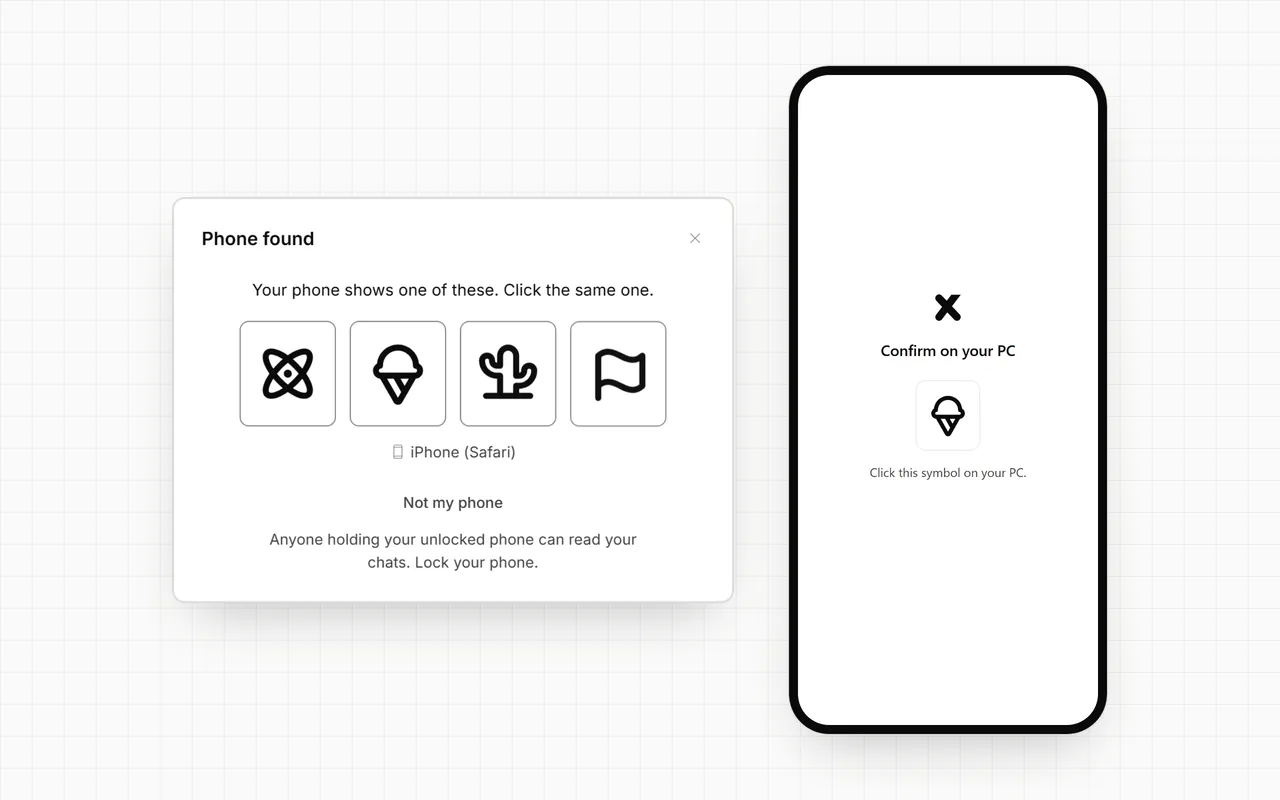
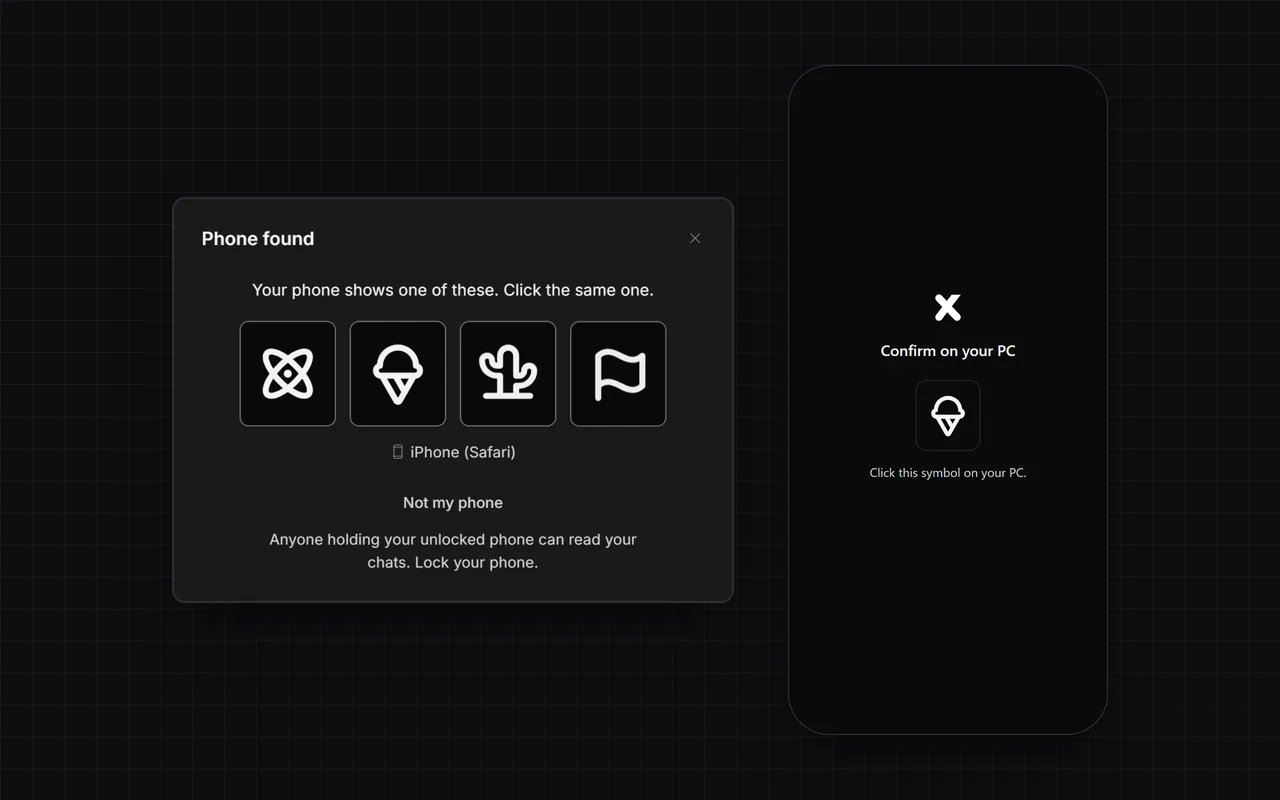
The symbol check makes sure the phone that scanned the code is yours. If the phone named on your PC is not yours, click Not my phone: nothing is shared with it, and the code closes.
A code works once and lasts two minutes. If it runs out, click New code and scan again.
Use crux from your phone
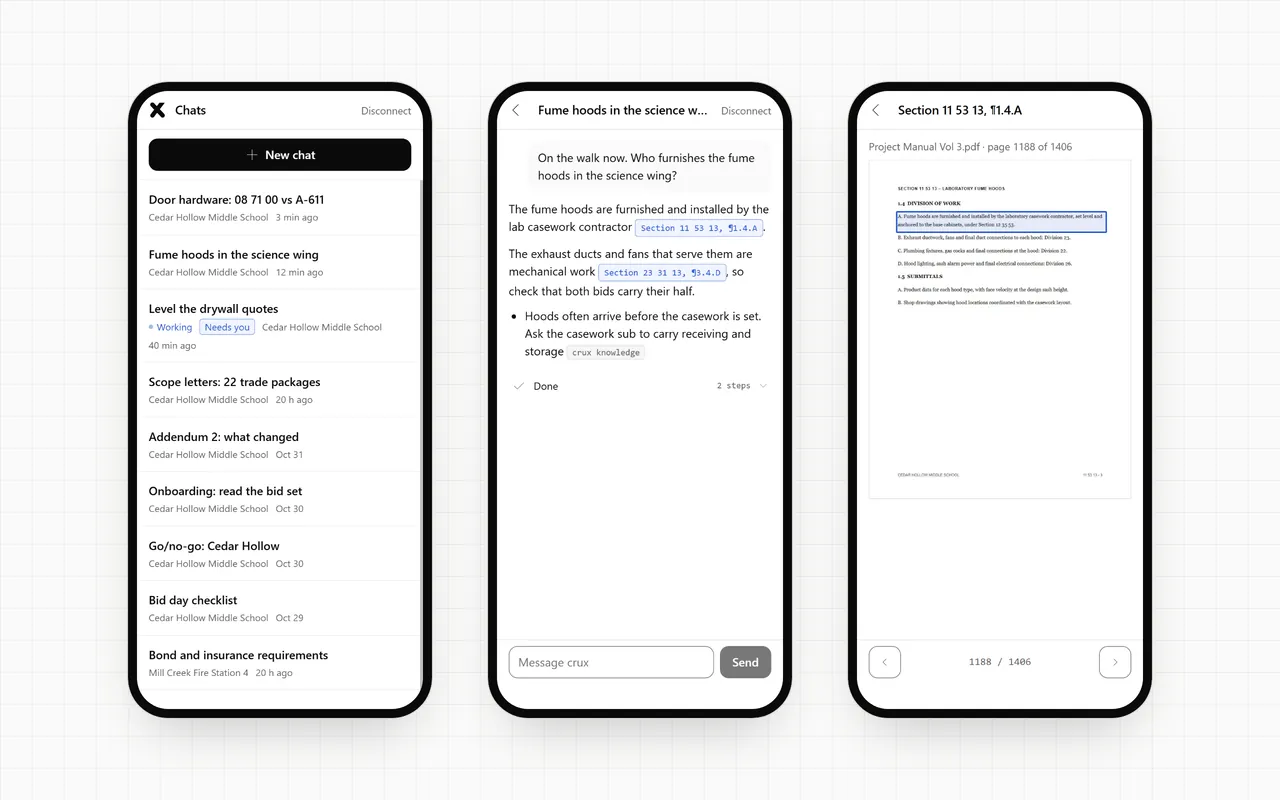
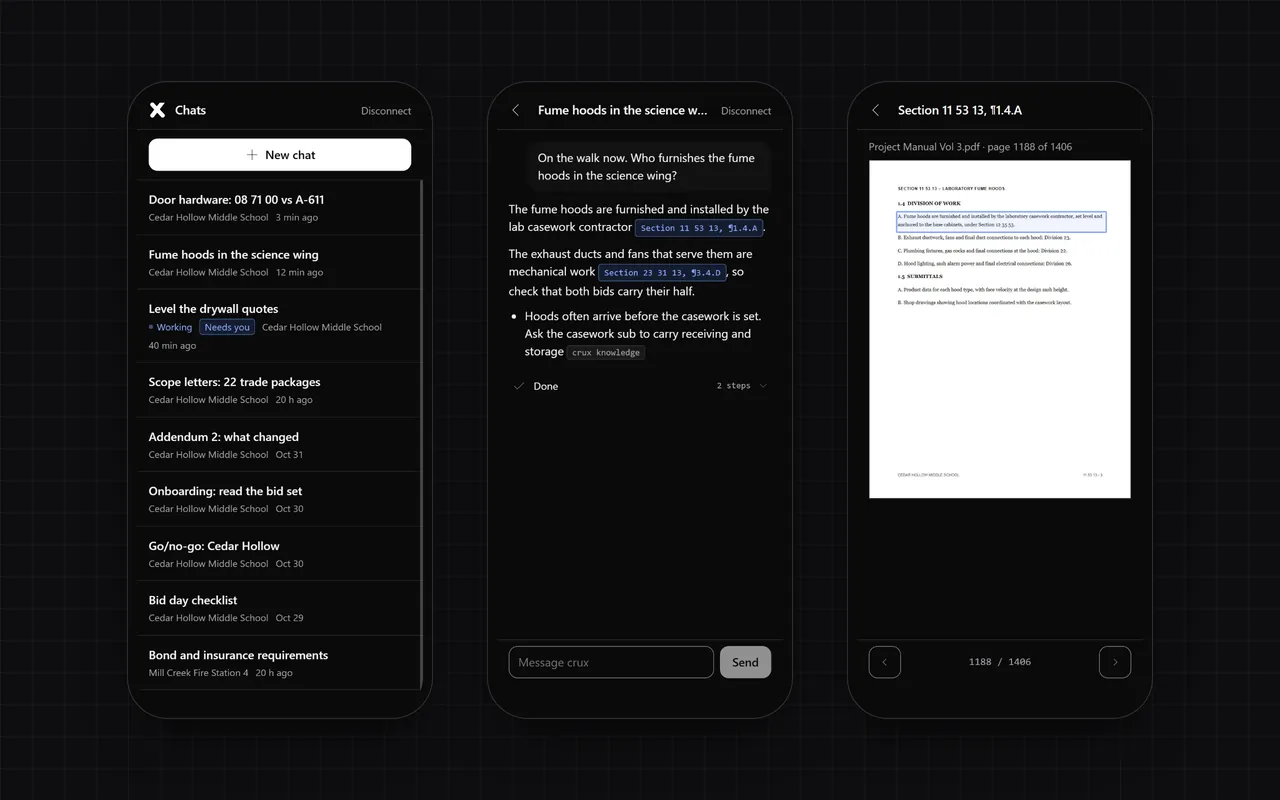
Your chats
Your phone lists your chats, with each chat's job and how long ago it was used. A chat shows Working while crux works on it, and Needs you when crux is waiting for your answer. Tap a chat to open it.
A long chat opens on its newest messages. Tap Show earlier messages to load more.
Start a new chat
- Tap New chat at the top of your chats.
- Pick a job, or No project (general chat). Your recent jobs show in the same order as the Project menu on your PC.
- Type your first message and tap Send.
Your PC starts the chat and your phone opens it. To cancel, tap the back arrow.
Ask and read
Type in the message box at the bottom and tap Send. While crux works, one row shows what it is doing right now; tap the row to see every step. When crux finishes, the row says Done. To stop a reply, tap Stop.
A few steps don't fit a small screen. For those, the chat says "Open this chat on your PC to see this step."
Send a photo
Show crux what you are looking at: a wall, a damaged finish, a label on a can.
- In the message box, tap the camera to take a photo, or tap the picture to choose one you already have.
- Add up to 4 photos to one message. Each one shows as a small picture above the box; tap its x to take it off.
- Type your question and tap Send.
Your phone makes each photo smaller before it sends it, so it goes quickly, and it leaves out the photo's location. The photo shows in the chat on your phone and on your PC, the same as a picture you paste on your PC. Tap a photo in the chat to see it larger.
In a chat with many pictures, your phone shows the newest ones. An older picture, or a GIF or WebP pasted on your PC, shows as Open on your PC; it is still in the chat on your PC.
See the page behind a citation
Tap a citation to open the page it came from. The page shows with the cited words boxed, and the document name and page number above it.
- Use the arrows under the page to go back and forward through the whole document.
- Tap the back arrow at the top left to return to the chat.
See Citations for what each citation points to.
Tip: If your jobs live on a shared drive you reach over a VPN or a slow connection, citations can take a little longer to light up on your phone. They work the same once they do.
Answer crux's questions
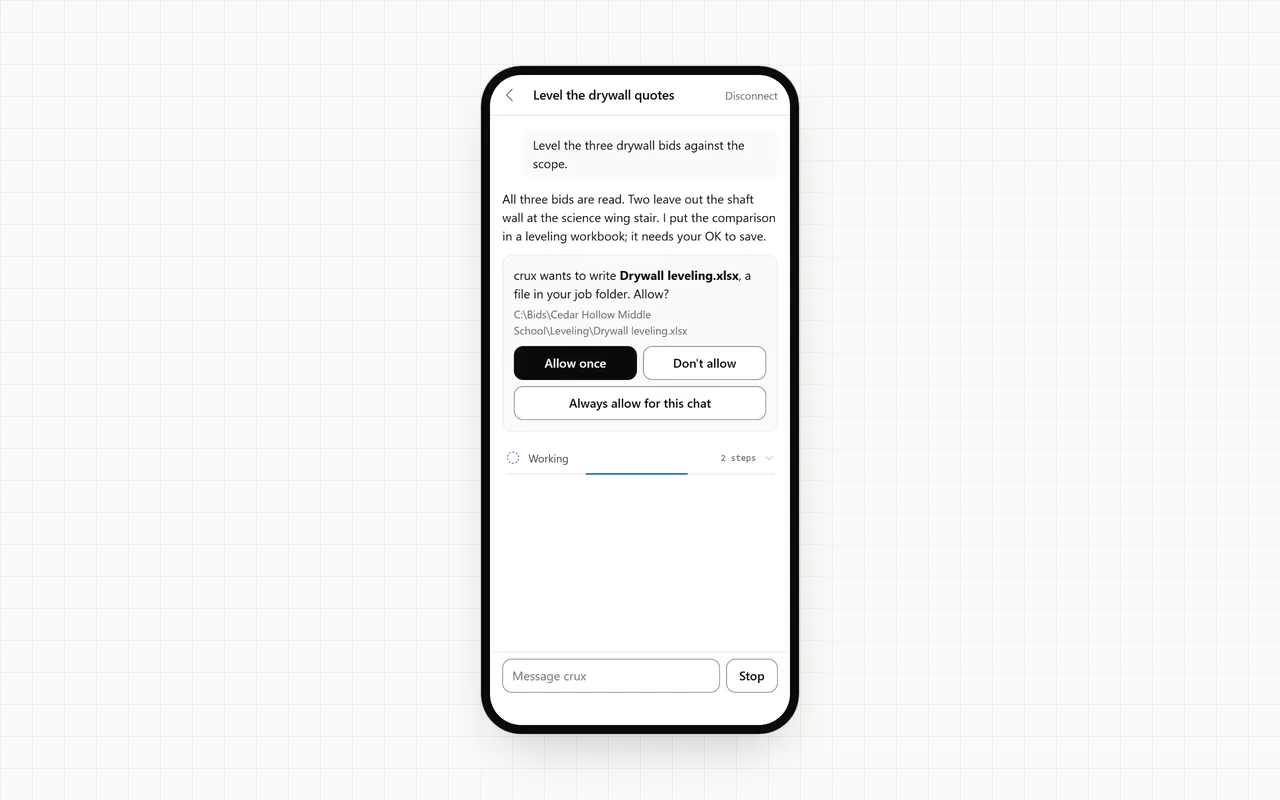
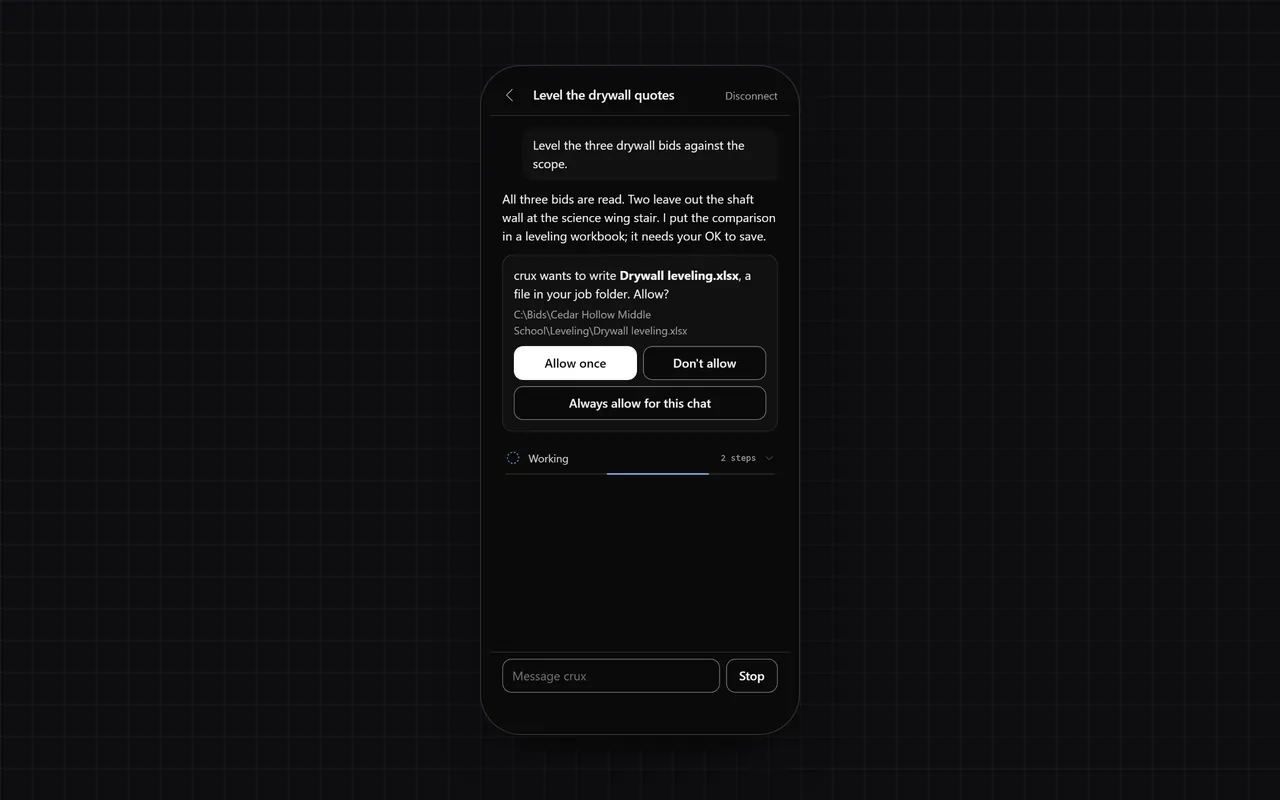
When crux asks before it does something, the phone shows the same question and the same answers as your PC:
- Allow once lets crux do it this time.
- Don't allow stops it.
- Always allow for this chat lets crux do the same thing again in this chat without asking.
Some questions offer only two answers, the same as on your PC. See Permission cards.
Disconnect
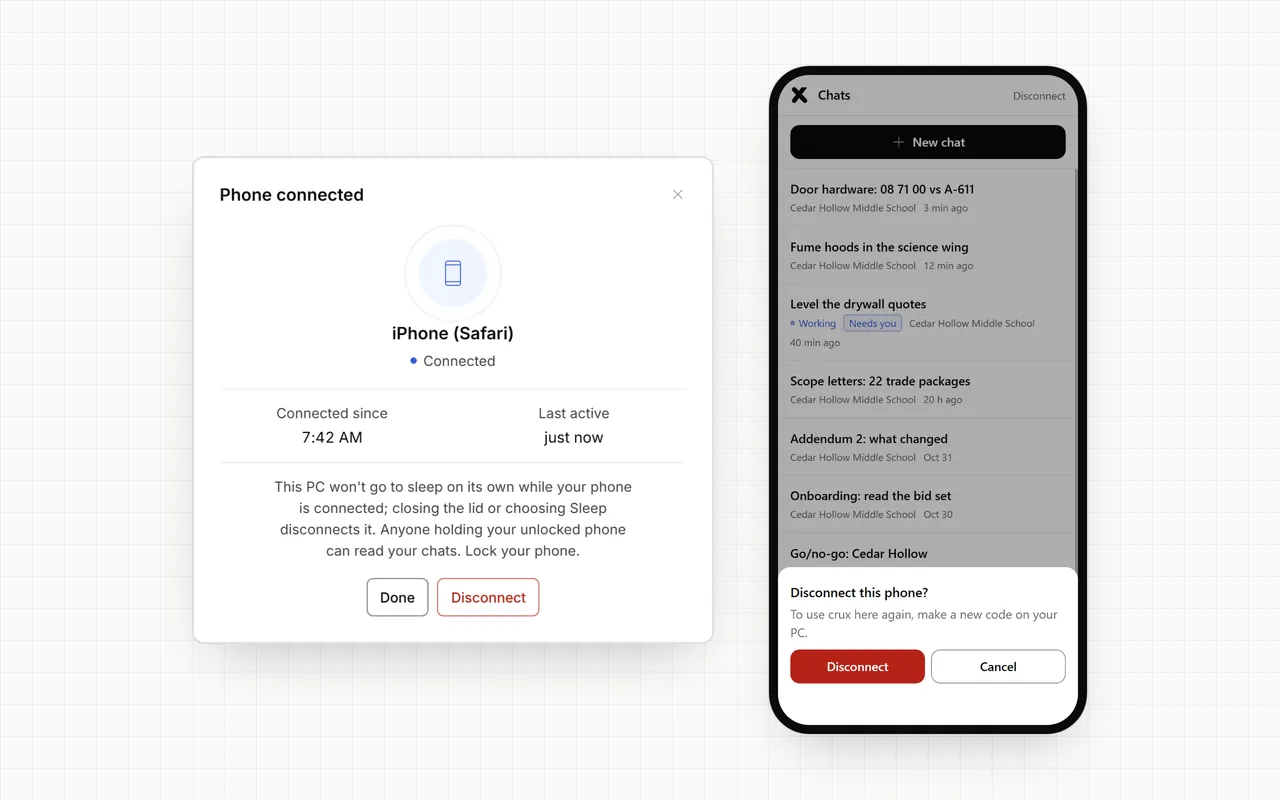
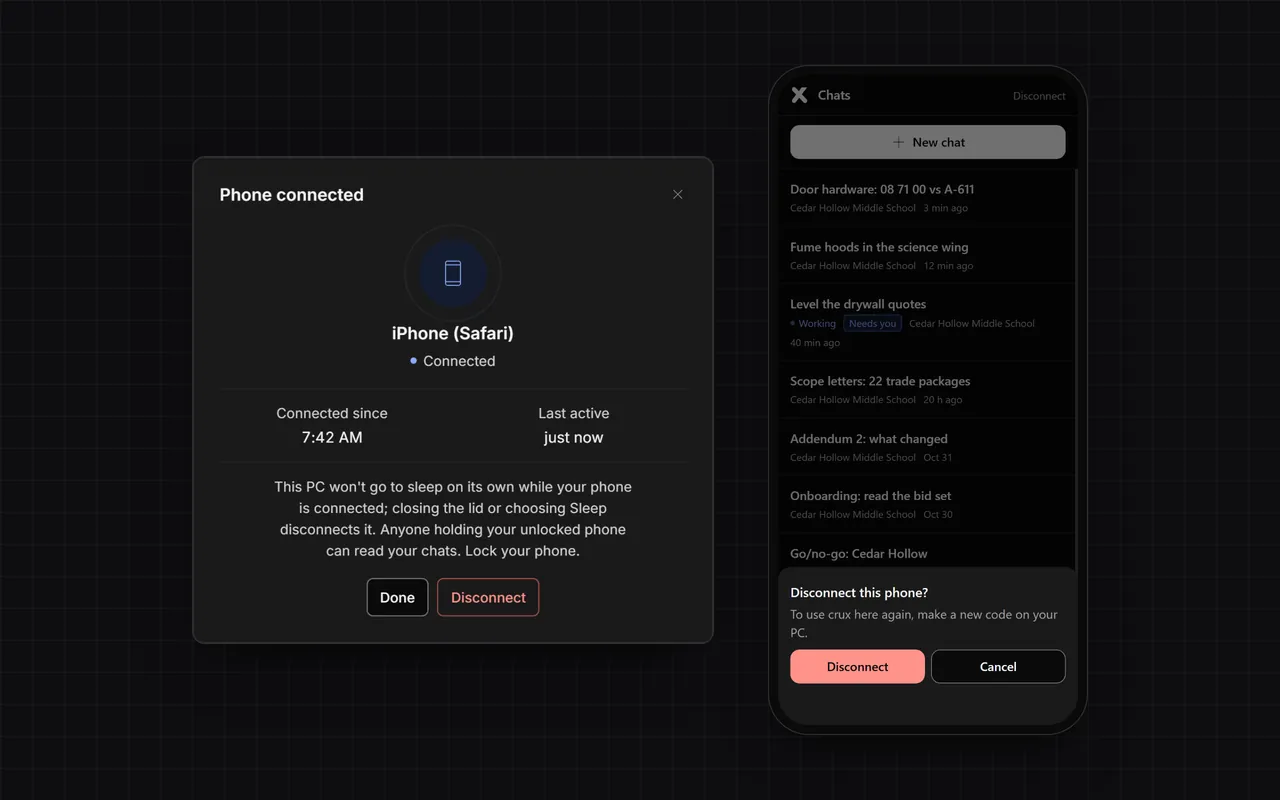
You can end the connection from either side, any time:
- From your phone: tap Disconnect at the top right, then tap Disconnect again.
- From your PC: click the phone icon at the top right of crux, then click Disconnect.
After either one, that phone can no longer reach your PC. To use crux on it again, pair it with a new code.
While your phone is connected, the phone icon on your PC is blue and pulses gently. Click it to see the phone, when it connected (Connected since) and when it last did something (Last active).
While crux is showing a code or your phone is connected, your PC and its screen stay on. Your PC still locks on its usual schedule if it is set to lock when the screen turns off, or if it has a password-protected screensaver. Your phone stays connected while it is locked.
It won't lock while you watch a full-screen video, give a presentation, use a full-screen app or are on a call that uses your microphone or camera. A video in a normal window may still lock it.
Closing the lid, or choosing Sleep, disconnects your phone. Keep a laptop open and plugged in.
If your phone says "Link used"
Each pairing link works once, on one phone. If you open the link again later, or on another phone, the phone says Link used. Nothing is wrong: make a new code on your PC and scan it.
Your chats stay yours
- End-to-end encrypted: only your PC and your phone can read what passes between them.
- The keys are made on your PC and your phone, and never leave them.
- Each pairing link works once, on one phone, and each code lasts two minutes.
- Disconnect from your PC or your phone, any time.
- Lock your phone. Anyone holding your unlocked phone can read your chats.
Troubleshooting
| Your phone says | What to do |
|---|---|
| Reconnecting… | Your phone or your PC lost the network for a moment. Wait; it comes back on its own. |
| Link used | The link was already used. Make a new code on your PC. |
| Your PC went to sleep or closed crux | Wake the PC, open crux, and pair again with a new code. |
| This phone was away too long | The phone was asleep for a while, so the connection ended. Make a new code and scan again. |
| No chats yet. Tap New chat to start one. | Tap New chat, pick a job and send your first message. A chat you start on your PC shows up here too. |
| Your PC says | What to do |
|---|---|
| This code expired | Codes last two minutes. Click New code and scan again. |
| Code closed | crux closed the code to keep your bids safe, for example because a second phone tried to use it. Click New code. |