

Takeoff by hand
Conditions and styling
Conditions, the condition card (line, fill, pattern, style, waste, H and T), the Takeoffs panel's tabs, pinned conditions, labels and the command box.
A condition is one priced line of scope, for example PT-1 Walls, eggshell. Every measurement goes into the active condition. crux sets most of them up from the documents; here you add, style and adjust them by hand.
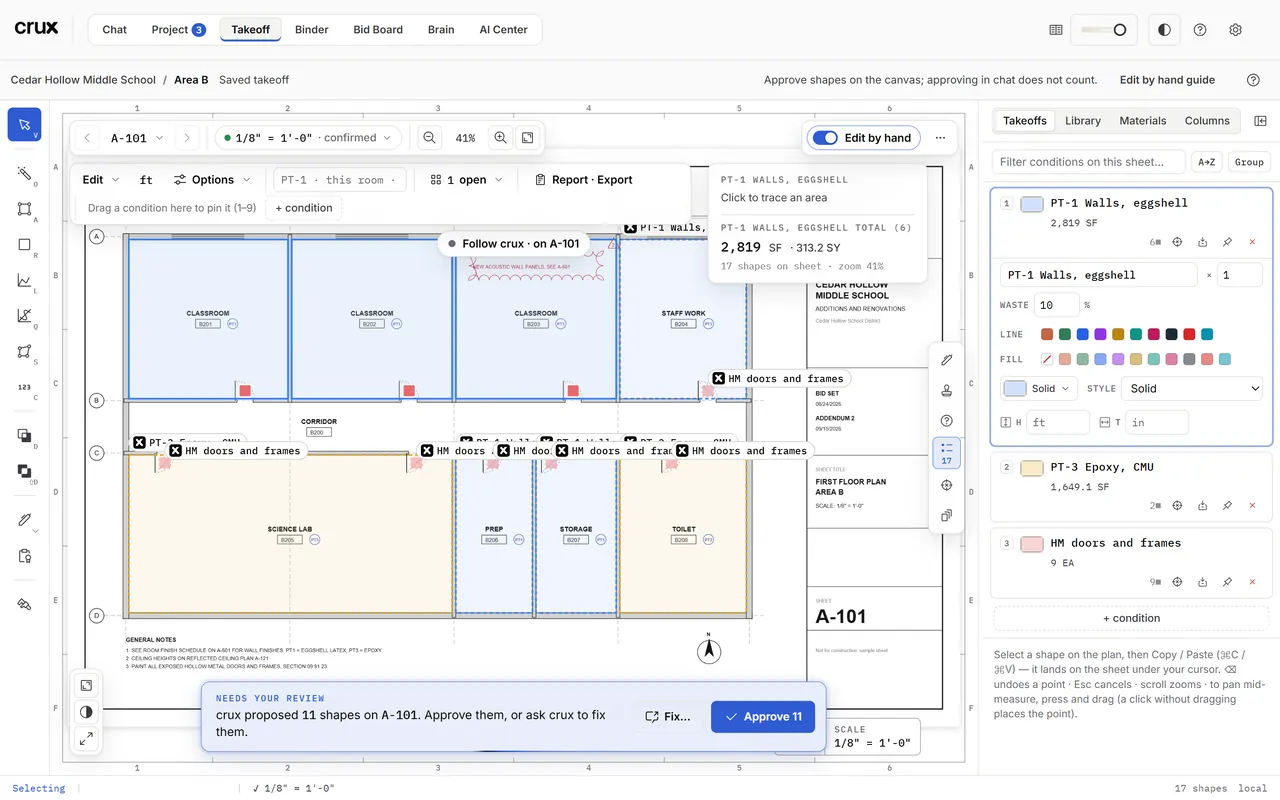
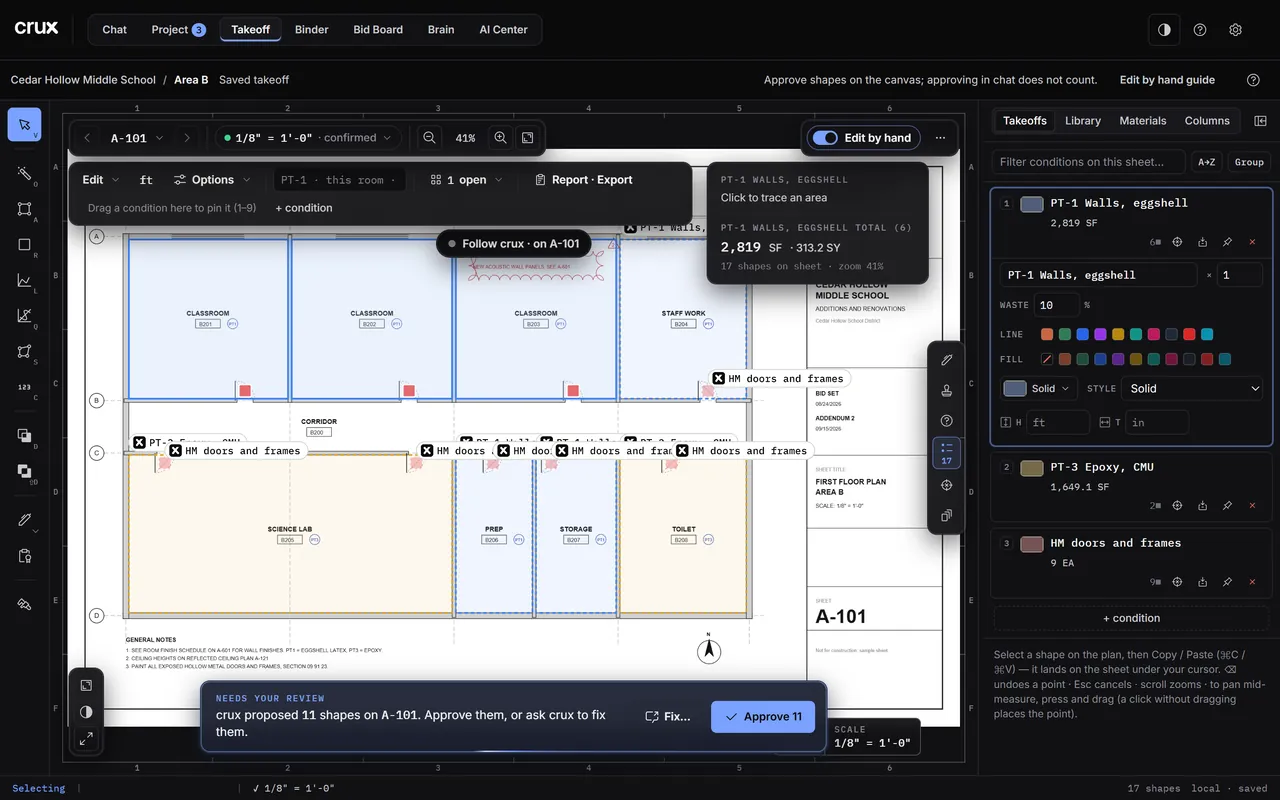
The Takeoffs panel
Open it with Takeoffs in the panels on the right edge (7 in the layout). Drag its left edge to make it wider. Four tabs:
| Tab | What it holds |
|---|---|
| Takeoffs | Every condition with its totals on the open sheets (Σ is the whole project), its shape count and buttons: zoom to its shapes, Supporting Materials, pin, delete. A filter box, A→Z and Group (by tag family: PT, EP…) at the top; + condition at the bottom. Ctrl-click or Shift-click rows to set waste or line colour on several at once. |
| Library | Condition templates kept on this computer for every job. Save to the library snapshots the active condition (look, waste, H and T, materials); Apply adds it to a takeoff. |
| Materials | A materials library. A condition line linked to it shows ⛓; a field you changed shows amber with ↺ to revert. |
| Columns | Your own columns to classify conditions (for example CSI division) for the report's grouping and exports, and the list of shape labels (phases, areas). |
The condition card
Click a condition in the Takeoffs tab to open its card:
| Field | What it does |
|---|---|
| Tag | The condition's name. Rename it in place. Keep it matching the documents' tag (PT-1). |
| × | Multiplier: measure one identical unit and count it N times. Shows as ×N everywhere. |
| Waste % | An allowance added on top of the measured quantity in the report's w/Waste columns. The measured quantity itself never changes. |
| Line | The outline colour on the canvas and in the marked-set PDF. |
| Fill | The fill colour, or the crossed box for no fill. |
| Pattern | The hatch: Solid, Diagonal, Crosshatch, Brick, Plank, Herringbone, Grid and more, so the canvas reads like the drawing. |
| Style | The outline dash for its areas and runs: Solid, Dashed, Dotted, Dash-dot. |
| H | Height: the default for new wall traces (Surface Area: SF = LF × H). Walls already drawn keep their height; select one wall to change only it. |
| T | Thickness: a Linear run with a thickness also gives a band's SF (LF × T ÷ 12). Changing it updates existing runs. |
| Your columns | When you made columns in the Columns tab, a picker per column. |
| Spec | When the condition came from a finish schedule: the product data it carried, editable. |
Supporting Materials () holds a free-text Labor field and the list of what goes on the order (primer, finish paint, caulk): each line with a coverage rate (1 unit per N SF, LF or each), round-up to whole units, and a note. The report's buy list comes from here. Duplicate for another area makes a twin: see Cut and split.
Careful: Deleting a condition deletes its shapes too and cannot be undone. crux asks first.
Pinned conditions and 1 to 9
The tool row keeps up to 9 pinned conditions: drag a condition from the Takeoffs panel onto the row, or use its pin. Each chip's number is its key: 1 to 9 make it active. With nothing pinned, the keys follow the list order. Click a chip to make it active; double-click to open it in the panel; drag chips to reorder (the numbers follow). + condition adds a new one.
Labels
Labels say which part of the job a shape belongs to without more conditions: Phase 1, East wing, Alt 2. Make the list in the Columns tab. Then the label picker in the tool row sets the active label that new shapes get; with a shape selected, it shows and changes that shape's label. The report can group by label.
The command box
The box in the tool row (it says PT-1 · this room · note 2 coats) runs short typed commands through the same actions as the buttons. Press Enter:
| Type | Does |
|---|---|
PT-1 or paint one | Makes PT-1 active (creates it if it does not exist) |
PT-1 waste 5 | The same, and sets its waste to 5% |
waste 10 | Sets the active condition's waste |
label Level 2 / clear label | Sets or clears the active label |
note 2 coats | Drops a text note on the sheet |
PT-1, this room | With the pointer resting on a room: makes PT-1 active and traces that room |
Anything it does not understand is refused in red, never guessed.
Import from schedule
⋯ > Import from schedule, then drag a box around a finish schedule on the sheet. crux lists every row it read (code, description, flags such as in use or duplicate); tick the ones to make into conditions. Each comes with its product data.
Common mistakes
- Changing H and expecting drawn walls to change. H applies to new walls; select a wall to change it.
- Waste in the measured quantity. Waste only shows in the w/Waste columns. Do not add it by hand as well.
- Two conditions with the same tag. Exports and crux's own tools find a condition by its tag; keep tags unique.