

Takeoff by hand
Measure: linear, area and count
Every measuring tool, step by step, with its key, what it measures and the mistakes to avoid.
Every measuring tool adds to the active condition (the one the live readout names; press 1 to 9 or click a condition to change it). The sheet must have a scale (Count is the one exception). The examples are a painter's: PT-1 walls, PT-3 ceilings, door frames by the each.
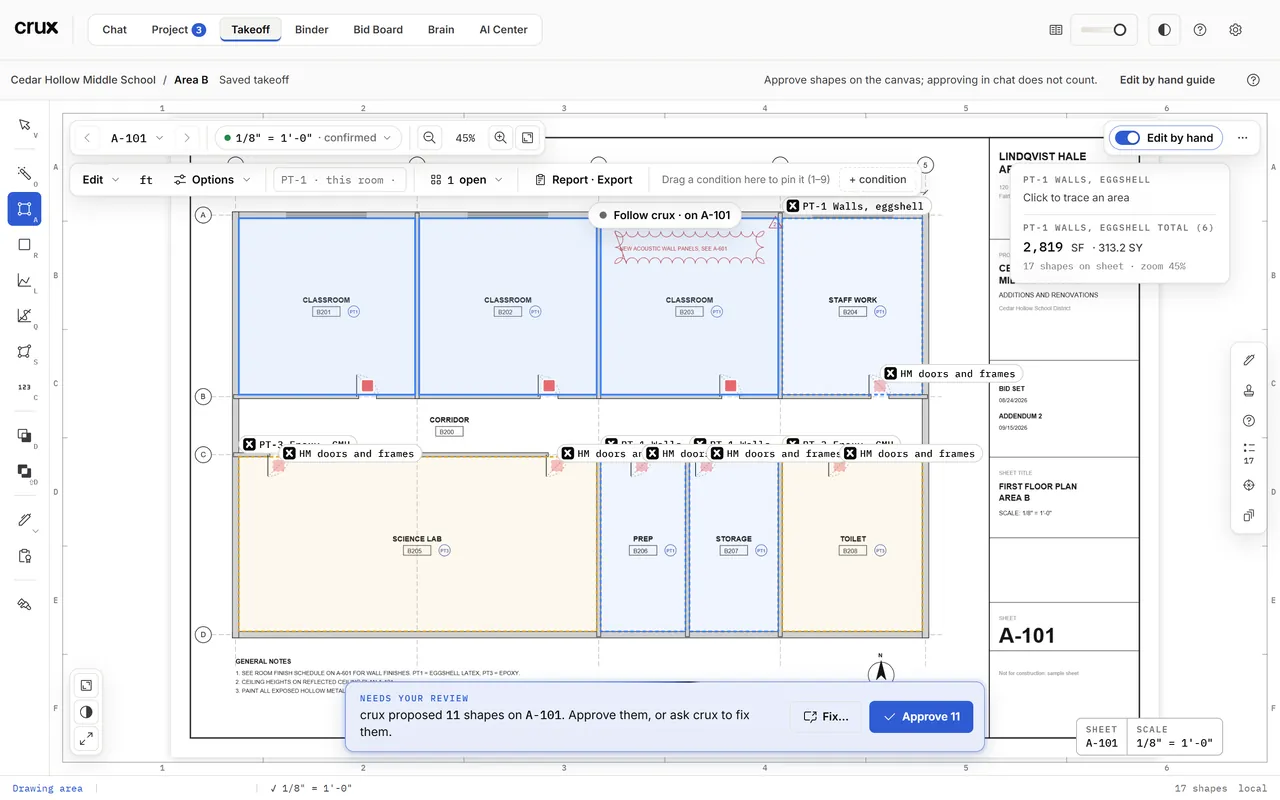
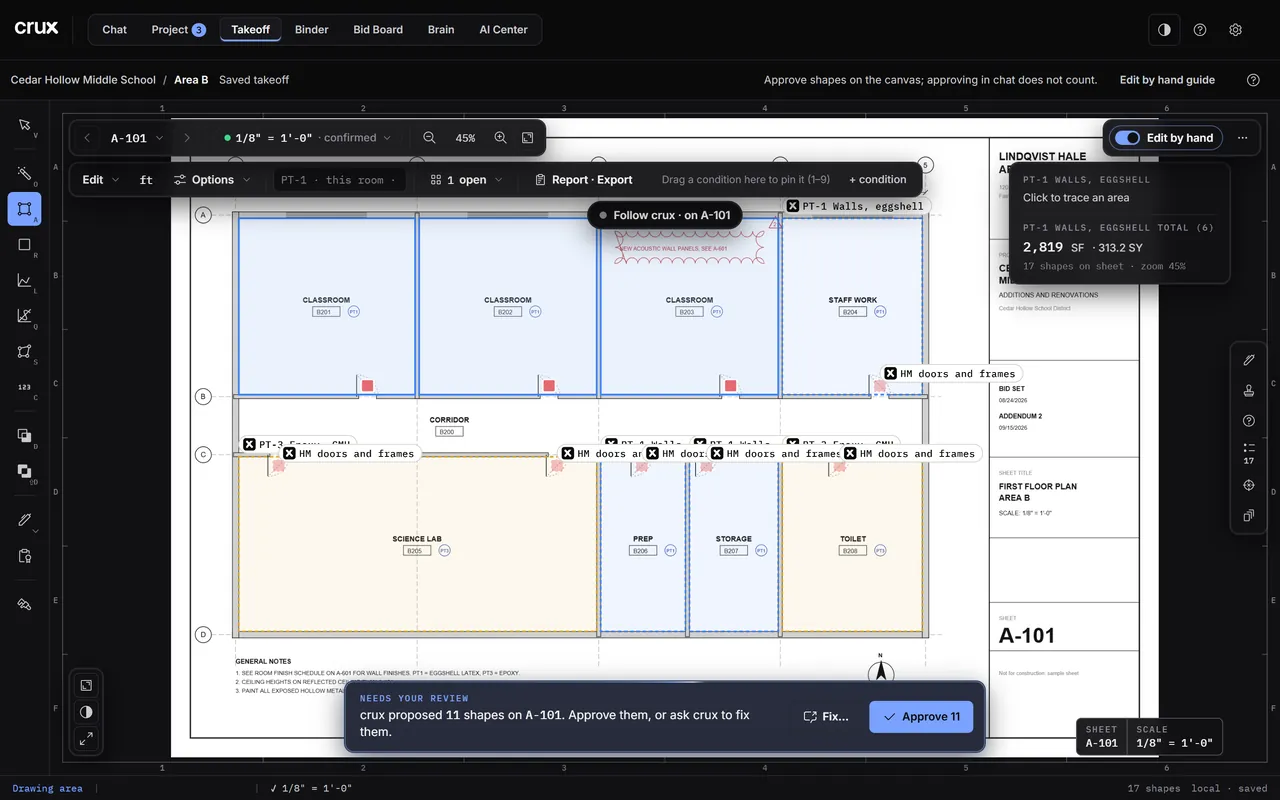
How every tracing tool works
- Pick the condition, then the tool.
- Click each point. A press that moves pans the drawing instead of placing a point.
- Finish with Enter, a double-click, or Finish (N) in the tool row.
- Backspace or Ctrl+Z removes the last point; Esc drops the whole trace.
While you trace, the crosshair is the pointer and a small chip beside it shows the running length. With 45° / 90° angle guides on (in Options, on by default), a segment within a few degrees of square locks to it; hold Shift to force the lock. Snap to plan lines (also in Options) pulls the pointer onto the drawing's real corners.
One-Click Area
One-Click Area, key O. The fastest way to measure a room.
- Click inside a room. Its outline traces itself from the drawing's walls, dashed.
- Click the next room, and the next: each one is added. Alt-click inside a selected room carves a hole (a column, a shaft) that is deducted.
- Before you create them, you can fix a traced outline: drag a corner, drag an edge, or Shift-click an edge to add a point.
- Create with Enter, a double-click, or Create (N). Each room becomes a shape; the newest stays selected, so Backspace removes it if it landed wrong.
When it refuses, it says why: the room is not closed on the drawing (an open doorway or a gap), or you clicked text or dense hatching. Click a more enclosed spot, or trace it with Area. Options > Fill sets how hard it tries to pass through hatching: Strict, Balanced (default), Aggressive.
Area
Area, key A. Floor or ceiling square feet of any shape.
- Click each corner around the space.
- Finish at three or more points. The shape reports SF, SY and its perimeter LF.
Rectangle
Rectangle, key R. Two clicks: one corner, then the opposite corner. The chip shows the size as you go, for example 12' 6" × 10' 0" · 125 SF.
Linear
Linear, key L. Lineal feet: trim, handrail, base, a caulk joint.
- Click along the run (two or more points).
- Finish. The run reports LF. If the condition has a thickness (T), it also gives a band's SF (LF × T ÷ 12).
Curved Line
Curved Line, key Q. Like Linear, but the line bends smoothly through your points: a radius wall, a curved soffit edge. The LF is the true curved length. Drag a point later and the curve follows.
Surface Area (walls)
Surface Area, key S. Wall square feet: you trace the wall in plan and the height comes from the condition.
- Make sure the condition has a height (H in its card; see Conditions and styling). Without one the tool refuses and tells you.
- Click along the wall run in plan, then finish. Wall SF = traced LF × height.
- One wall a different height (a wainscot, a full-height wall)? Select it: the readout lets you set this wall's height, and ↺ puts it back to the condition's.
Careful: crux never guesses a wall height. A wall with no height shows amber and crux asks you in chat; your answer is dated and becomes the source.
Count
Count, key C. One click, one EA: doors, frames, fixtures, bollards. Counts need no scale.
Zone check
Zone check, in Options. "What is in this wing?" without changing the takeoff.
- Trace a region like an area and close it with Enter.
- A panel lists every condition inside, with its quantities and its materials for that region. Shapes count by their center point.
- Nothing is saved. Esc or another tool clears it.
The live readout
The readout (8 in the layout) names the active condition, says what the armed tool needs next ("Click to trace an area"), and keeps the condition's totals: SF, wall SF, LF, EA, and the shape count. With Surface Area or a selected wall it shows the height in use.
Common mistakes
- The scale is not set or not confirmed. The readout says Set scale first and the shape is refused. See Scale and calibrate.
- The wrong condition is active. Check the readout's first line before you trace; to fix it afterwards, move the shape.
- A drag instead of a click. It pans; no point is placed.
- Tracing on a scanned sheet with One-Click. A scan has no lines, so One-Click refuses: trace with Area or Rectangle.
- Surface Area on a condition with no height. Set H first.